Deploy Boost with Workspace ONE MDM
docs/customer-installation/mdm/workspace-one, and this page renders that file directly so edits in the repository update the website on the next build.Tested environment
This deployment path was tested with Workspace ONE UEM on Windows. For managed macOS fleets, use the Jamf Pro guide instead.
How the rollout works
Add the script in WS1
In Workspace ONE UEM, go to Resources → Scripts → Add, choose Windows, and paste the PowerShell one-liner into the Code field on the Details step.
Set the execution context
Select PowerShell, run in User Context with Admin Privileges, leave End-User Interaction off, keep Execution Architecture on Auto, and set the timeout to 30 seconds.
Assign to a smart group
Assign the script to the smart group of Windows devices that should receive Boost. Rerunning it is safe: it refreshes the binary and re-applies the selected integrations.
The WS1 script
One line does both halves of the install: the Windows installer puts the Boost binary on the user's PATH, then boost init installs the Claude Code and Cursor hooks and accepts the preview terms non-interactively.
irm https://boost.jfrog.com/install.ps1 | iex; boost init --claude --cursor --accept-termsRaw source: install.ps1
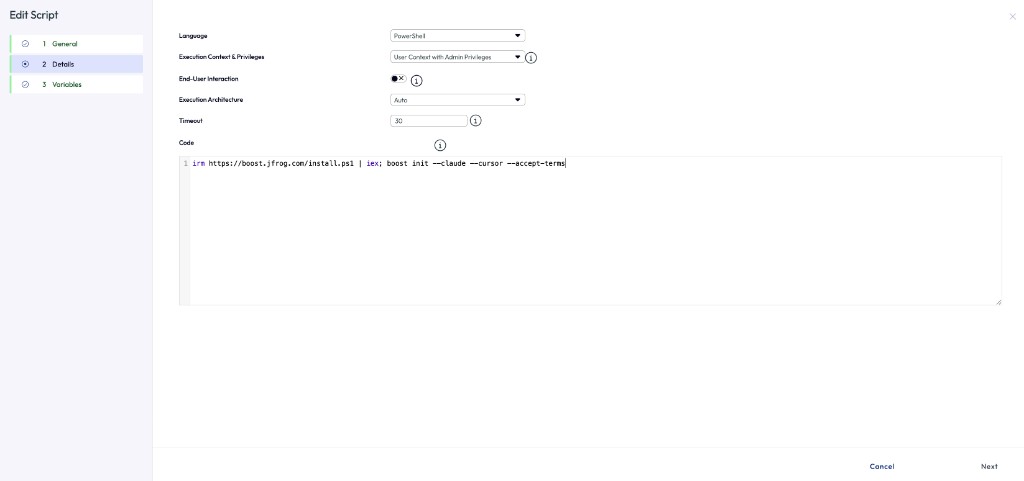
Script settings
| Language | PowerShell |
| Execution Context & Privileges | User Context with Admin Privileges |
| End-User Interaction | None |
| Execution Architecture | Auto |
| Timeout | 30 |
Why user context
Boost installs per user under %USERPROFILE%\.local\bin, and boost init writes agent hooks into the user's Cursor and Claude Code config directories. Running the script as SYSTEM would install Boost for the wrong profile, so the WS1 job must run in user context.
Choosing integrations
Change the boost init flags to match the agents your fleet uses. --accept-terms is required because the script runs without end-user interaction.
irm https://boost.jfrog.com/install.ps1 | iex; boost init --cursor --accept-terms
irm https://boost.jfrog.com/install.ps1 | iex; boost init --claude --cursor --codex --accept-terms
Operational notes
- The one-liner is idempotent: rerunning it upgrades Boost in place and re-applies the selected integrations.
- Developers must restart Cursor or Claude Code after the script runs so the new hooks are picked up.
- The 30-second timeout covers the download on a normal connection; raise it if your egress proxy is slow.
- Verify a device by running
boost versionandboost reportas the logged-in user.
Related docs
For individual developer setup, use the Boost quickstart. For managed macOS fleets, see Jamf Pro MDM. For install flow details, see the install flow product spec.